

17 Practical Ways to Use Productivity Apps That Will Change Your Freelance Life
If you’re freelancing, you already know that managing your time, clients, and projects can feel overwhelming. The good news is that the right productivity apps can turn chaos into order, but only if you know how to use them effectively. This list focuses on hands-on, actionable strategies for integrating apps into your daily workflow. Each item includes practical tips you can implement today to see real results in how you work, communicate, and get paid.
- Start Your Day by Checking Legiit for New Client Opportunities
Legiit is a marketplace built specifically for freelancers offering digital services, and it deserves a spot in your morning routine. Instead of endlessly pitching on crowded platforms, spend 15 minutes each morning browsing buyer requests and updating your service listings. The key is to treat your Legiit profile like a storefront: add clear descriptions, set competitive prices, and respond to inquiries within an hour. Many freelancers find consistent work here because the platform attracts clients who already understand the value of hiring specialists. Make it a habit to check notifications daily and adjust your offerings based on what buyers are actually requesting.
- Set Up Toggl Track with Project-Specific Tags
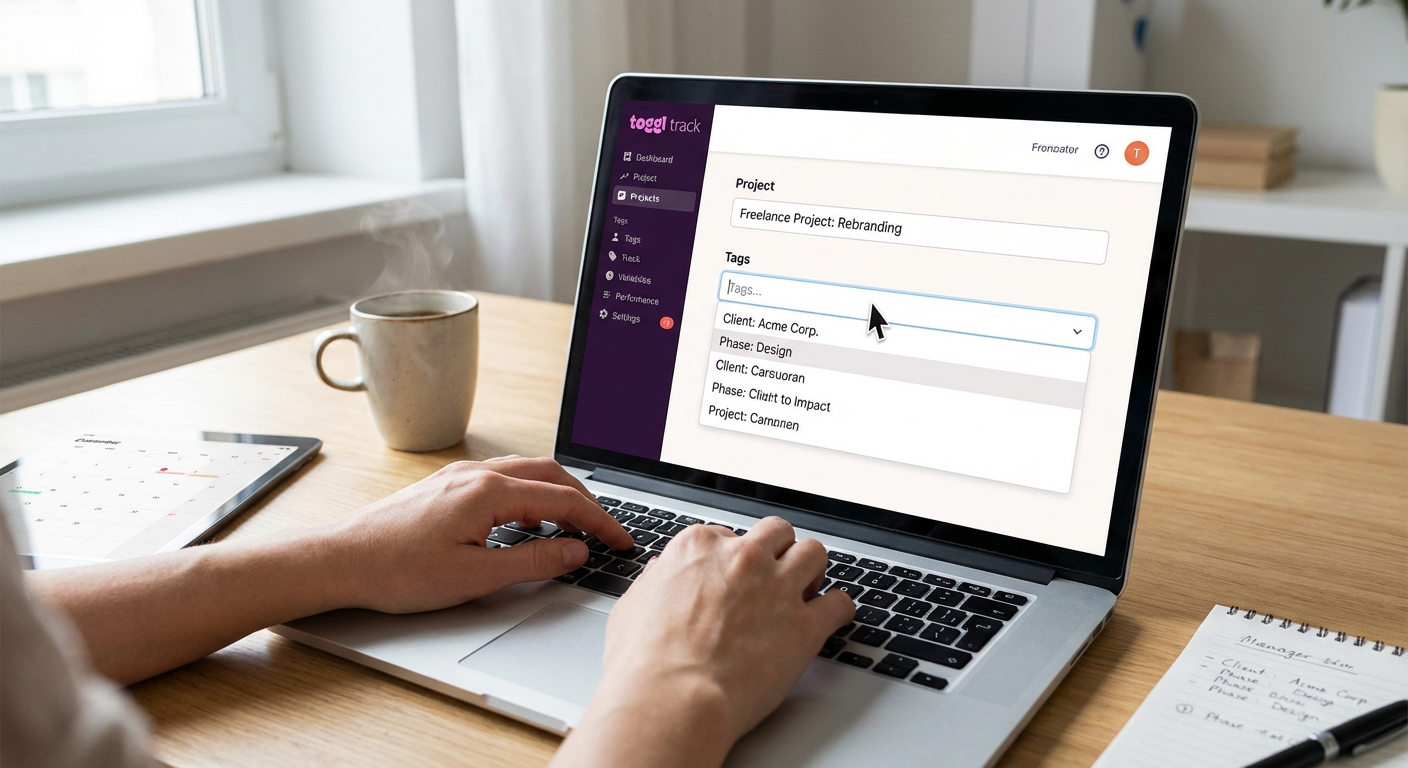
Toggl Track is a time tracking app that becomes powerful when you use tags correctly. Create tags for different types of work like ‘client calls,’ ‘revisions,’ ‘admin tasks,’ and ‘deep work.’ At the end of each week, run a report to see where your hours actually go. This reveals patterns you might miss otherwise, like spending too much time on emails or underestimating how long revisions take. Use this data to adjust your rates, set boundaries with clients, or block out specific hours for high-value work. The app works across devices, so start the timer on your phone during a call and it syncs automatically to your desktop.
- Create a Trello Board Template for Recurring Projects
Trello’s card-based system works best when you stop reinventing the wheel for each project. Build a master board template with columns for each phase of your typical project: brief received, research, first draft, client review, revisions, and delivered. Add a checklist to each card with the specific steps you follow every time. When a new project starts, copy the template board and rename it for that client. This saves you from forgetting steps and gives clients visibility if you share the board with them. You can also use the calendar power-up to see all your deadlines in one view.
- Use Notion to Build a Client Onboarding Database
Notion shines when you use it as a database rather than just a note-taking app. Create a client database with properties for contact info, project type, rates, contract status, and payment terms. Add a linked database for projects so you can see all work associated with each client. The practical benefit is that everything lives in one searchable place. When a client emails asking about past work, you can find it in seconds instead of digging through folders. Set up a template for new client entries with a checklist of onboarding tasks like sending the contract, collecting the deposit, and scheduling the kickoff call.
- Schedule Slack Status Updates to Manage Client Expectations
If you use Slack with clients, the status feature is underused but incredibly practical. Set your status to show when you’re in deep work mode, in meetings, or offline for the day. Use the scheduling feature to automatically update your status at specific times, like ‘focused work until 2pm’ every morning. This trains clients to respect your boundaries without requiring awkward conversations. You can also create custom statuses like ‘checking messages twice daily’ with an emoji. Pair this with notification settings that pause alerts during your focus blocks, and you’ll reclaim hours of interrupted time each week.
- Set Up Zapier to Auto-Save Email Attachments to Google Drive
Zapier connects apps so they work together automatically, and one of the most practical uses is organizing client files. Create a Zap that watches for emails from specific clients and automatically saves any attachments to designated Google Drive folders. This means briefs, assets, and reference files are organized before you even open them. You can add filters so only certain file types get saved, and you can create separate Zaps for each major client. The time savings add up quickly, and you’ll never lose an important file in your inbox again. Check your Zaps weekly to make sure they’re still running correctly.
- Use Grammarly’s Goals Feature for Client-Specific Writing Styles
Grammarly isn’t just a spell checker when you use the goals feature strategically. Before writing for a client, set goals for tone, formality, and audience. For a corporate client, select formal tone and expert audience. For a lifestyle blog, choose casual and general audience. The app adjusts its suggestions based on these settings, helping you match each client’s voice more consistently. Save different goal presets for regular clients so you can switch between them quickly. This is especially helpful if you write for multiple industries in the same day. The consistency improves client satisfaction and reduces revision rounds.
- Block Your Calendar in Google Calendar with Color-Coded Work Types
Google Calendar becomes a productivity tool when you time-block your entire week and use colors meaningfully. Assign a color to each type of work: client calls, deep work, admin tasks, learning, and personal time. On Sunday evening, block out your week based on your actual energy patterns. If you’re sharpest in the morning, block that time for creative work and use afternoons for calls and admin. Share your calendar with regular clients so they can see your availability without back-and-forth emails. Review your calendar each Friday to see if you’re actually sticking to your blocks, and adjust next week based on what worked.
- Create Canned Responses in Gmail for Common Client Questions
Gmail’s canned responses feature saves you from retyping the same emails repeatedly. Write templates for common scenarios like project updates, revision requests, payment reminders, and scheduling calls. Enable templates in Gmail settings, then create and save your responses with clear names like ‘gentle payment reminder’ or ‘project delivered.’ When you need one, start composing an email, click the three dots, select templates, and insert your saved response. Personalize it with the client’s name and specific details before sending. This cuts email writing time in half while maintaining a professional, consistent tone. Update your templates quarterly as your business evolves.
- Use Forest App to Build Uninterrupted Focus Sessions
Forest is a focus app that uses gamification to keep you off your phone. The practical approach is to use it for specific work sessions, not all day. When you start a task that requires concentration, open Forest and set a timer for 25 or 50 minutes. A virtual tree grows during that time, but it dies if you leave the app to check social media or texts. The visual consequence is surprisingly effective at breaking the checking habit. Use it for tasks you typically procrastinate on, like writing proposals or doing bookkeeping. After a month, the app shows you stats on your focus time, which can motivate you to build longer sessions gradually.
- Set Up Wave Accounting to Track Expenses as They Happen
Wave is free accounting software built for freelancers, and it works best when you use it in real time rather than playing catch-up. Install the mobile app and photograph every business receipt the moment you get it. The app reads the receipt and creates an expense entry automatically. Connect your business bank account so income and expenses sync without manual entry. Once a week, review transactions and categorize anything the app missed. This takes five minutes weekly instead of a full day at tax time. Run a profit and loss report monthly to see if you’re actually profitable after expenses, which helps you make smarter pricing decisions.
- Use Loom to Replace Long Explanation Emails with Video Messages
Loom records your screen and your face simultaneously, and it’s perfect for explaining revisions, walking through drafts, or answering complex client questions. Instead of writing a five-paragraph email trying to explain your design choices, record a two-minute Loom showing your screen and talking through your reasoning. The client gets tone and context that text can’t convey, and you save time writing. Clients often prefer this because they can watch when convenient and replay sections they need clarified. Keep videos under three minutes for best results. Use Loom’s emoji reactions feature to quickly gauge client sentiment without requiring a response from them.
- Build a Swipe File in Evernote with Examples That Inspire Your Work
Evernote’s web clipper lets you save examples of great work you find online, organized by project type. When you see a website with perfect copy, a social post that performs well, or a design that solves a problem cleverly, clip it to Evernote with tags like ‘landing pages’ or ’email sequences.’ Add a quick note about what specifically works. When you start a new project, search your swipe file for relevant examples to spark ideas and remind yourself of best practices. This is faster and more personalized than generic inspiration boards. Spend 10 minutes weekly adding new clips so your file stays current and useful.
- Use Calendly with Buffer Times to Protect Your Energy
Calendly automates meeting scheduling, but most freelancers don’t use the buffer time feature. Set a 15-minute buffer before and after each meeting type. This gives you time to prepare, use the bathroom, grab water, and decompress before jumping into the next task. You can also set minimum notice periods so clients can’t book a call an hour from now when you’re deep in work. Create different meeting types for discovery calls, project kickoffs, and check-ins, each with appropriate durations and buffers. Connect Calendly to your Google Calendar so your personal appointments block off time automatically. Review your booking settings monthly to adjust based on how rushed or relaxed you feel.
- Track Your Wins Weekly in a Simple Google Doc
Freelancing can feel like you’re never doing enough, so keeping a wins document helps you see progress clearly. Create a Google Doc with a heading for each week. Every Friday, spend five minutes listing what you completed, positive client feedback, money earned, and problems solved. This isn’t about perfection or formatting, just capturing facts. When you have a slow week or feel discouraged, scroll back through months of wins to remember how far you’ve come. Use this document when updating your portfolio or website because you’ll have concrete examples ready. Some freelancers also use this list during rate negotiations to justify price increases with proof of their growing expertise.
- Use RescueTime to Identify Your Actual Productive Hours
RescueTime runs in the background tracking which apps and websites you use, then categorizes them as productive or distracting. The practical value comes from the weekly report showing your most productive hours. You might assume you work best in the morning, but the data might show you’re actually more focused after lunch. Once you know your patterns, schedule your hardest work during your natural peak times and save easier tasks for low-energy periods. Set up alerts that notify you after spending 30 minutes on distracting sites so you can course-correct before losing a whole afternoon. Review your report each Monday to plan your week around your real energy patterns, not your ideal ones.
- Create an Asana Project for Your Business Development Tasks
Asana is great for client work, but using it for your own business tasks keeps your pipeline full. Create a project called ‘business development’ with recurring tasks for activities like updating your portfolio, reaching out to past clients, posting on LinkedIn, and researching new markets. Assign these tasks to specific days so they don’t get buried under client deadlines. Add subtasks with the specific actions needed, like ‘write three LinkedIn posts’ instead of vague ‘social media.’ Use Asana’s timeline view to see your business development work alongside client projects, helping you balance earning now with building for later. Set a weekly recurring task to review and adjust your business development priorities based on your current needs.
The difference between apps that sit unused and apps that actually change your freelance life comes down to implementation. Each tool on this list works best when you take the time to set it up properly, adjust it to your specific needs, and build it into your daily routine. Start with one or two apps that address your biggest pain points right now, whether that’s time tracking, client communication, or financial organization. Get comfortable with those before adding more. The goal isn’t to use every productivity app available but to find the handful that genuinely make your work easier, your income more predictable, and your stress levels lower. Pick one item from this list and implement it this week.
Recent Comments